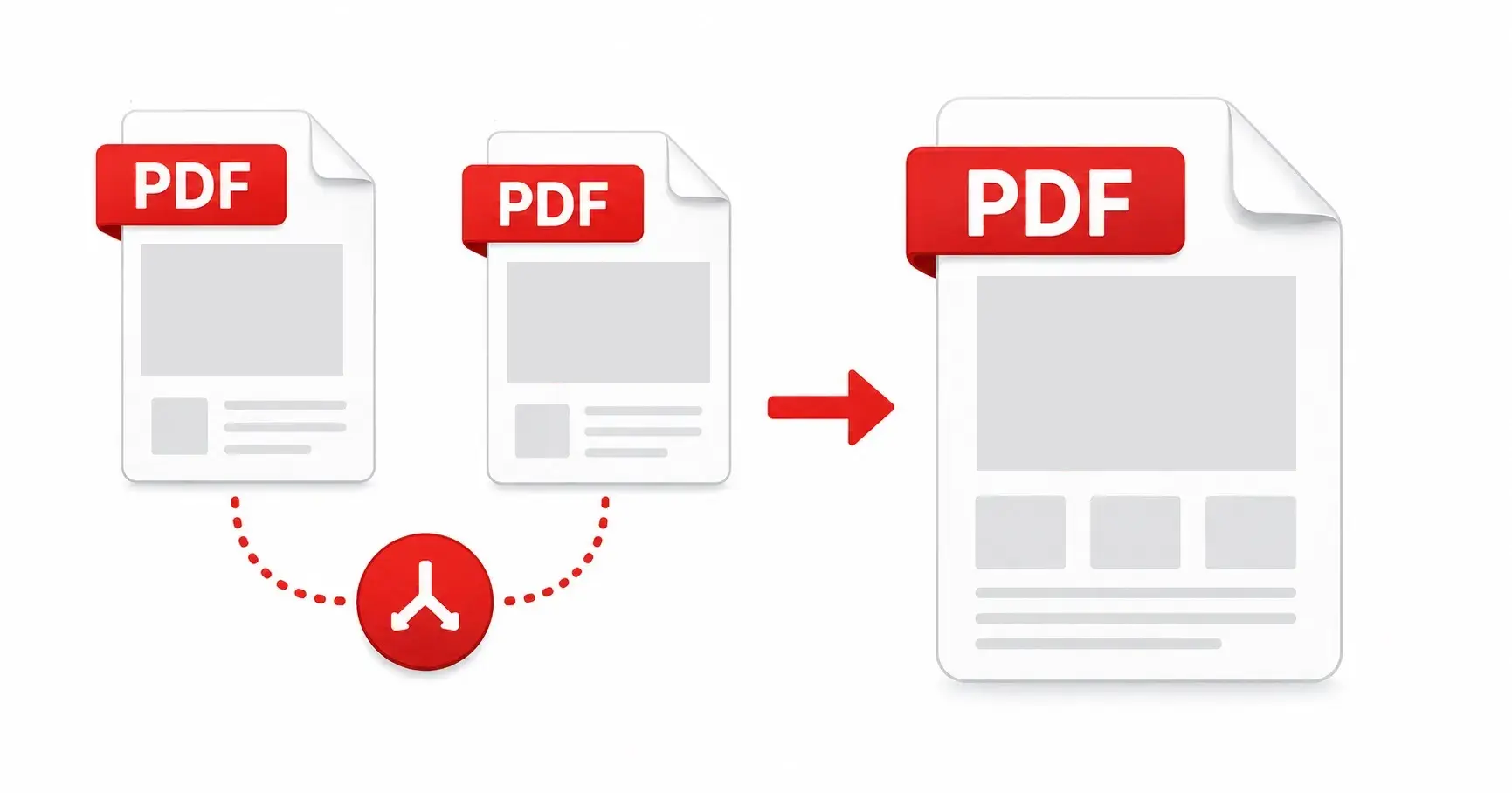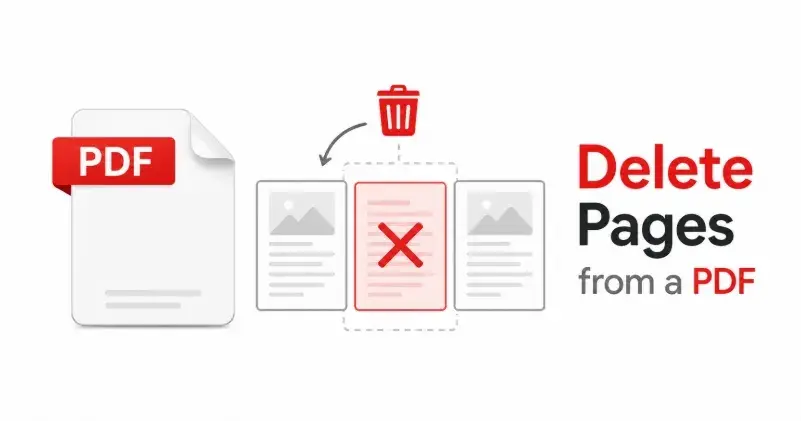
Every office worker has encountered this scenario: you have a PDF that is almost exactly right, except for one page that should not be there — a blank page at the end, a confidential section, an outdated cover page, or a duplicate that crept in during a merge.
Visual page selection
PDFStick renders all pages as thumbnail previews when you upload a PDF for page deletion. You can see exactly what is on each page before deciding to remove it. Click any thumbnail to mark it with a red X. Click again to unmark it. The marking is completely reversible until you click "Delete Pages".
Common use cases
The most frequent reasons to delete pages from a PDF: removing blank pages that appeared during scanning; stripping a confidential appendix before sharing externally; cutting a cover page that is no longer relevant; removing duplicate pages that were accidentally included during a merge; and extracting a document from within a larger bundle by deleting everything outside the relevant section.
How this differs from splitting
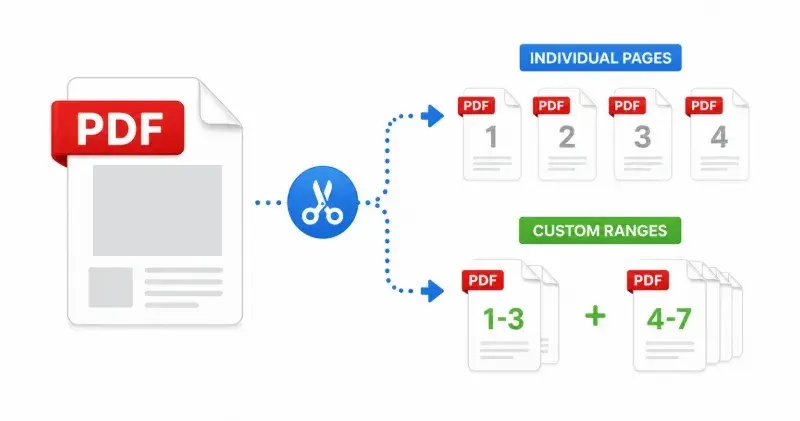
Splitting creates multiple output files from one input. Deleting creates one cleaner output file. Use deletion when you want to keep the document together but remove specific pages — use splitting when you want to separate a document into distinct pieces.
Privacy and safety
Because page deletion runs on your device without uploading your files, you can safely use this tool for documents containing sensitive personal or business information. The original file is never uploaded to our servers, and the edit happens locally. Once you download the cleaned PDF and close the tab, the working data is cleared when you close the tab.